Search in PDF Documents: How to Find Any Text, Even Scans
You know the clause is in the contract. It sits somewhere around page nine, a paragraph about renewal, and now you need the exact wording. You click into the document, press Ctrl+F, type renewal, and the viewer reports no matches. You try a shorter word. Still nothing.
That moment is what search in PDF documents really comes down to. The search box rarely breaks. What breaks is the assumption that a page showing letters also carries machine-readable text underneath them.
Treat PDF search as a verification task rather than a keystroke. Confirm the file has a text layer, confirm every hit lands where the viewer says it does, and confirm every miss is a genuine absence rather than a failed lookup. The gap between those two outcomes is the difference between finding the clause and signing a contract you didn't read.
Table of Contents
- Choose the Right Search Method for Your PDF
- How to Search a Digital PDF Step by Step
- How to Make a Scanned PDF Searchable
- Searching Many PDFs at Once With AI
- Why Your Search Misses Results and How to Fix It
- Pick the Search Method Your Next PDF Needs
Choose the Right Search Method for Your PDF
A signed contract is the worst place to discover that Ctrl+F does nothing. The clause is visibly there, and the viewer insists it isn't. The fix depends entirely on which kind of file you're holding.
A PDF isn't automatically searchable just because it displays text. When a document comes off a scanner or a phone camera, the letters are stored as graphical images rather than character data, so standard tools can't reliably select, copy, extract or search the words, as Adobe's accessibility guidance for PDFs sets out. That describes most of the files people complain about: a signed contract, a stack of invoices, an archive scan, an older report.
Run this three-question diagnosis before you touch a single setting. It takes under a minute.
- Can you select individual words? Drag the cursor across one sentence. If the selection grabs the whole page as a block, you're looking at an image.
- Does Find return a hit for a word you can see? Search a distinctive surname from the header. A visible word with no hit is the classic scan signature.
- Does a password or permission prompt appear? That's a different problem entirely, an access restriction rather than a missing text layer.
Two yes answers mean native search will work. A no on either of the first two points to a scan, which needs OCR before any search is possible. A permission prompt means the owner restricted text access, and no amount of retrying changes that.
| PDF type | Best search method | What to expect |
|---|---|---|
| Digital PDF with selectable text | Find with Ctrl+F on Windows or Cmd+F on Mac in the viewer | Exact words and phrases, highly reliable |
| Scanned PDF with image-only pages | Run OCR first, then search the new text layer | Depends on scan quality, so check misses against the page |
| Phone photo of a page | Clean up, straighten and run OCR, then search | Lowest accuracy, so verify names, dates and numbers |
| Folder of many PDFs | Desktop search index or AI document analysis across files | Covers all files at once, but each hit still needs a source check |
| Tagged PDF needing structure checks | Accessibility check and reading order review | Confirms headings, tables and reading order, not only words |
Diagnosis comes first because an image-only page and a locked file need opposite fixes. Running OCR on a document you have no rights to open solves nothing, and hunting through permission settings on a scan wastes an afternoon.
How to Search a Digital PDF Step by Step
A born-digital PDF, one exported from Word or InDesign rather than photographed, carries a text layer the viewer reads directly. Searching it takes seconds once you know what the search box can see.
- Click inside the page first. If focus sits in the browser toolbar, Ctrl+F opens the browser's find bar, which searches page furniture rather than document text. Click once in the document area, then press Ctrl+F on Windows or Cmd+F on Mac.
- Type the shortest specific term. One distinctive word beats a phrase you half remember. Wrap phrases in quotation marks where the viewer supports it, because an unquoted query matches each word separately, anywhere on the page.
- Step through the hits rather than counting them. Work through with Enter or the panel's arrow buttons. Each highlight marks where the viewer believes the phrase sits, and the surrounding lines are what you need to read.
- Search variants, not just the term. Try singular and plural, hyphenated and closed forms, and the older spellings that turn up in historical documents, such as "to-day" for "today" or "connexion" for "connection".
- Search numbers in every format. Thousands and decimal separators change by country, so try 1,200 and 1200 and 1.200 and 1 200. Dates need the same treatment, since 03/04/2024 means March in one office and April in another.
- Use the search panel across open files where your viewer supports it, so one query covers every document you have open instead of a tab-by-tab repeat.
Two slips cause most false misses. A phrase broken by a line break in a hyphenated document won't match as a phrase ("indemni-fication" reads as one word to the viewer but two to you), so search the stem instead. Ligature characters such as fi and fl are sometimes stored as single glyphs, which breaks a match that looks identical on screen.
The reason search behaves differently across files comes down to how the format developed. PDF began in 1993 as a page description with no way for software to access the underlying words. PDF 1.3 in 2000 introduced logical document structure, PDF 1.4 in 2001 added tagged PDF so software could interpret reading order, and PDF 1.7 became the ISO 32000-1 standard in 2008, as ISO's account of PDF standardization records. Older files have less of that machinery inside them.
A hit on one page proves nothing about the rest: the viewer reports what it found in the text layer it could read. A miss elsewhere may mean the term is absent, or that the pages in between were scanned and never converted.
How to Make a Scanned PDF Searchable
A scanned invoice arrives, you can read the vendor name perfectly, and Search returns nothing for it. The file has no text layer yet, so OCR has to create one before any query can work.
The sequence below is the one that survives contact with real paper archives.
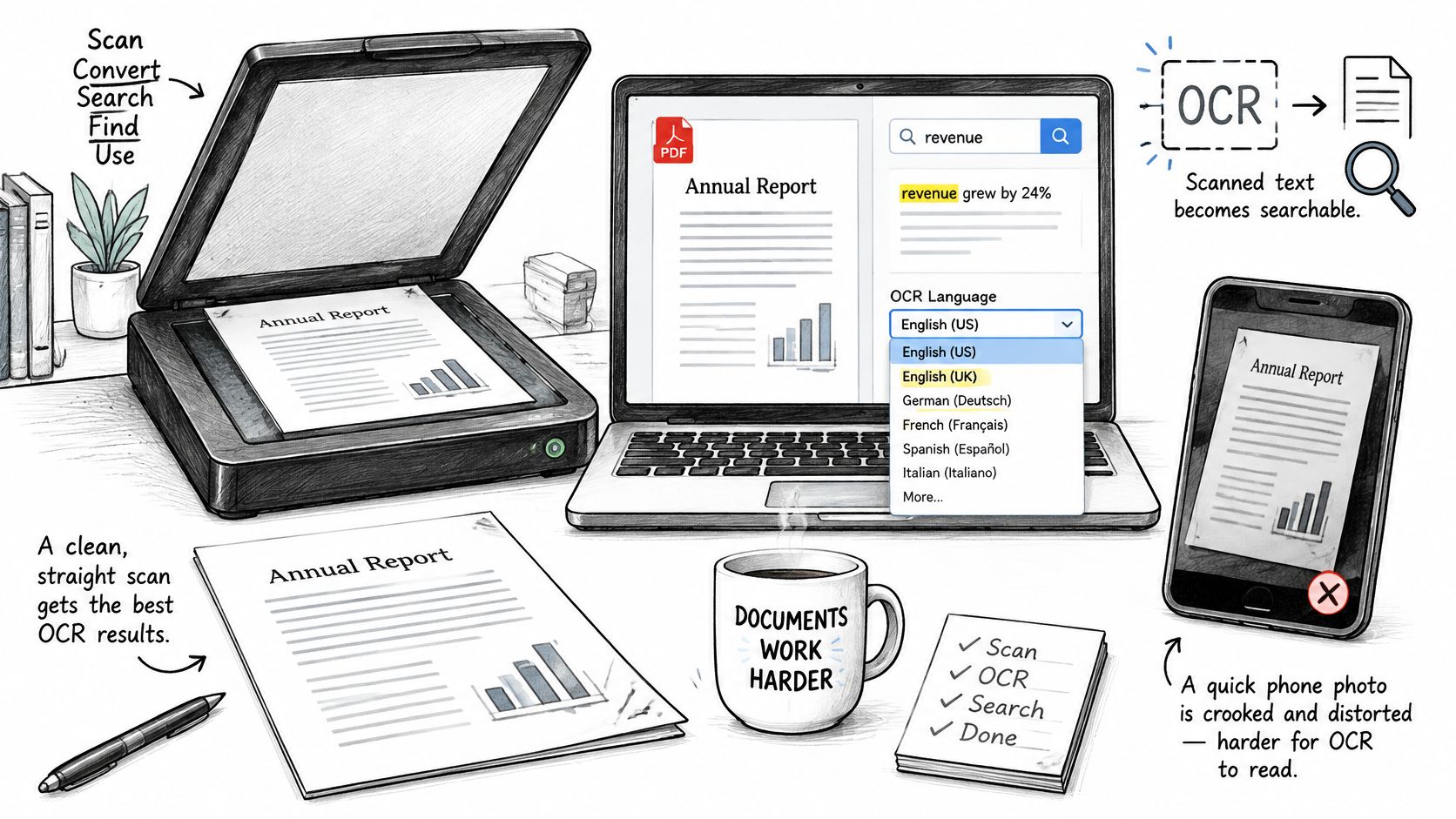
- Start with the best image you can get. A flatbed scan at 300 dpi in grayscale beats a phone photo taken at an angle every time, because every later step inherits the flaws of the input. If a phone is all you have, shoot straight down, fill the frame and keep shadows off the text.
- Deskew and clean before recognition. A tilt of a degree or two is enough to confuse a layout analyser, and speckle from a dirty platen reads as punctuation. Straightening pages improves results more than any setting in the OCR dialog.
- Set the document language first. Engines use language models to resolve ambiguous characters, so an English setting on a German invoice produces confident nonsense. Split multi-language documents by language before conversion.
- Run OCR in a real tool. The Scan and OCR feature in Adobe Acrobat and the OCR command in other PDF editors write the recognized characters as a text layer behind the page image.
- Check the output against the page. Search a word you know appears at least twice and compare each hit with the scan. If the count comes up short, the rest of your indexing will come up short too.
- Review high-value strings by hand. Names, dates, monetary values and legal clauses deserve a manual pass, because one misread character breaks an exact query while the surrounding paragraph still reads fine.
- Save as a new file. Keep the untouched original so any result you quote can be traced back to the pixels it came from.
Adobe describes OCR as adding recognized characters while preserving the visual appearance of the original page, which is why a converted file still looks like the scan you filed (Adobe's guide to making a PDF searchable). It creates machine-readable content that PDF software can query, and it doesn't guarantee that every character was interpreted correctly, particularly with poor image quality, unusual fonts, columns, handwriting or tables.
Treat recognition as probabilistic retrieval rather than transcription. Across 322 English book scans and 100 Arabic article scans replicated under 43 noise conditions, Google Document AI and Amazon Textract substantially outperformed standalone Tesseract, especially as image noise increased, according to the OCR benchmarking study in the Journal of Computational Social Science. The practical consequence is simpler: engine choice matters, but verification still belongs to the person filing the document.
Clean the scan, not the settings: a straight, evenly lit page at a sensible resolution fixes more recognition errors than any checkbox in the OCR dialog.
Preparation before the scan matters as much as the settings afterwards. The discipline described in prepping case files before scanning pays off here, because a consistently oriented, well-lit page set converts far more reliably than a folder of mixed captures. When layout carries meaning, such as rotated tables or multi-column forms, an app that reads page images and words together can be a better instrument than text extraction alone; this overview of apps that read documents, images and text in one flow shows why that matters.
Searching Many PDFs at Once With AI
Say you're reviewing forty supplier contracts for renewal terms before a budget meeting. Opening each file and pressing Ctrl+F is a morning's work, and the contract you forget to open is usually the one that matters.
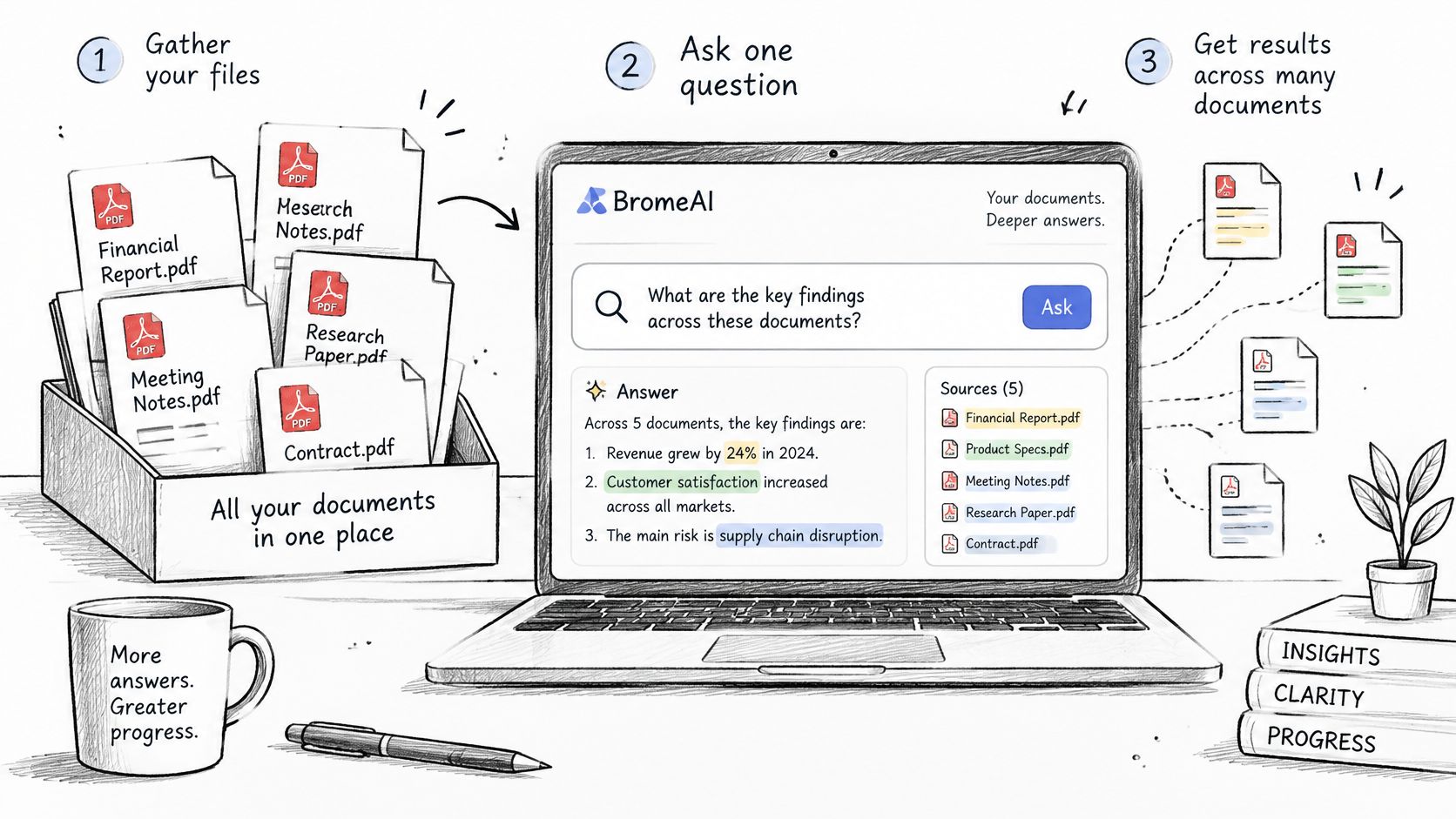
A conversational workspace changes the shape of that job. Treat the answer as a lead, then verify it the same way you would verify a Ctrl+F hit: confirm the file had a text layer, open the cited page, and check whether a real miss means the term is absent or only unreadable.
The workflow that holds up looks like this.
- Gather the files in one place. Contracts, invoices and the payment spreadsheet belong together, because the questions that matter cross between them.
- Upload them together. A question covering every file at once is a different exercise from reading one document at a time, and it catches the contract that never appeared in the spreadsheet.
- Ask something specific. "Which contracts mention a renewal date" and "does this invoice number appear twice" are answerable. "Summarise these" is not.
- Open the source for each finding. A useful answer points back to the document it came from. If it doesn't, you're reading a summary you can't check.
- Ask again or switch models for a second reading. The files stay in context, so a follow-up costs nothing but the time to read it.
Two everyday examples show the range. A student checking a semester of lecture PDFs for how one term is defined gets an answer that cites the handout and page. A business reviewer comparing supplier agreements for conflicting liability caps gets the conflicting clauses side by side instead of a memory of what each one said.
Before reaching for a conversational tool, use the native route for a folder of many files. Acrobat searches across multiple PDFs, and Windows Search or the macOS Spotlight index will query thousands of files by keyword. For exact term lookups across a large archive, those are faster and cheaper. Build the index only after OCR, because an unindexed scan returns nothing.
The pipeline underneath matters more than the interface. A comparative digitization study found that direct text extraction handled born-digital PDFs well while failing on scans, with its best direct-extraction pipeline reaching 98.70% character-level and 97.71% word-level accuracy in a study of PDF text extraction and retrieval pipelines. After OCR, text needs Unicode normalization, dehyphenation at line breaks, and indexing alongside page coordinates so every hit can be shown and audited.
Volume is what makes the discipline pay off. A 2016 industry analysis counted roughly 2.2 billion PDFs on the public web and reported that Google Drive and Gmail were saving about 73 million new PDF files a day, as the PDF Association's account of PDF usage records. Those are historical estimates rather than a current census, but the order of magnitude holds, and nobody reads that many files one at a time.
A workspace such as BromeAI takes this route: drop the PDFs, invoices and a payment spreadsheet into one conversation and ask a question that spans all of them. The mechanics are set out on the BromeAI document analysis page. For a second opinion on keeping a source trail when one question spans dozens of documents, Rooy Development on AI research assistants covers the same verification habit from the research side.
The limits are real. AI answers still need checking against the original page, scans still need OCR before any tool can read them, and no match in one file is not proof that the whole collection lacks the term. Log the files you searched with file name, page number and exact phrase, so a miss in one folder never gets treated as a miss in the whole archive.
Why Your Search Misses Results and How to Fix It
A failed search means one of five things, and each has a different first move. The most common complaint is also the simplest to diagnose. Find returns nothing while the words sit plainly on the screen, which points to a scanned page with no text layer, and OCR is the only fix. The other four symptoms split into structure, character accuracy, permissions and file scope.
| Symptom | Likely cause | Fix |
|---|---|---|
| Find returns nothing but the words are visible | Scanned pages with no text layer | Run OCR, then search the new file |
| A word in a heading or table is missed | Reading order problems or flattened tables | Check tags and reading order, then search a shorter fragment |
| A name or number misses after OCR | Character misread, such as 0 read as O | Search likely variants and compare with the page image |
| Hits in one file but none in another | Password or permission limits on text access | Request an unrestricted copy from the document owner |
| Hits in the body but not in attachments | Embedded files and metadata not covered by the search | Open attachments separately and check document properties |
A term sitting in a heading or a table often survives conversion in a scrambled order. Multi-column layouts and flattened tables scatter words into a sequence that no longer reads like a sentence, so search a shorter fragment ("termination" rather than "termination for convenience") and then check the structure behind the page.
Searchable text isn't the whole story either. Tagging is a separate requirement that establishes logical reading order and provides hooks for alternative text on non-text elements, and Adobe's PDF accessibility repair workflow checks searchable text, structure tags and security settings together. A file can return your keyword and still present the surrounding content in a baffling order, which matters when the hit sits inside a table of figures or a three-column policy.
The scale of that problem is measurable. In the WebAIM Screen Reader User Survey results summarized by the University of Arizona's PDF remediation guidance, 85.6% of respondents considered PDFs very or somewhat likely to pose significant accessibility issues, up from 75.1% in 2019.
Misread characters after OCR need patience of a different kind. Zero becomes the letter O, one becomes lowercase l, five becomes S. Search the likely variants, then open the page image and read the string with your own eyes before you rely on it. An OCR evaluation review puts numbers on how sharply accuracy varies by document type: general historical scans scoring 47.7% on one benchmark against 82.3% for older mathematical scans, with Blackletter material producing character error rates of 50 to 70% without specialized training. On a difficult scan, a miss says more about the OCR than about the document.
Permissions produce a quieter failure. One contract returns every hit and the next returns none, and the difference is an owner setting that blocks text access rather than anything wrong with your query. Ask for an unrestricted copy rather than experimenting with tools. Attachments and metadata need the same separate treatment, since embedded files and document properties usually sit outside a normal search. When the diagnosis spans a whole archive, generating a report from those findings records which files needed OCR, which were permission-locked and which were clean, without retyping page references by hand.
Every row in that table ends the same way: open the page and read it. A hit is only real once you have seen the words where they were found, and I treat a miss as unverified until the page itself confirms the term is absent. A successful text search doesn't prove the whole PDF is searchable.
Pick the Search Method Your Next PDF Needs
The decision rule is short. Native search for digital files, OCR for scans and photos, verification against the page for every result that will be quoted or acted on, and document analysis when one question has to be answered across many files.
Then take one real file and test the rule. Run the three-question diagnosis, search for a term you know appears at least twice, and count the hits against the pages. If the count matches, native search is working. If it falls short, the file needs OCR or the term needs variants.

That single check tells you more than any settings tour. It's also the habit that separates a search you can defend from a search you merely ran, because a short hit count on a known term is an early warning that every other query on that file is unreliable too.
When the question spans several contracts, invoices or spreadsheets, hand the files over together and ask it once, rather than repeating the same search in each one. This can find the renewal clause you remembered and the one you didn't.
A search is only as good as the check you run on its results.
BromeAI is an AI workspace where you can drop PDFs, DOCX files and XLSX spreadsheets into the same conversation and ask questions that span every one of them at once, instead of working document by document. Each finding in an answer points back to the file it came from, so you can open the original page and confirm the clause, the amount or the date before anyone acts on it. Visit BromeAI to try it on the contracts and invoices already sitting in your to-do list.